Live view
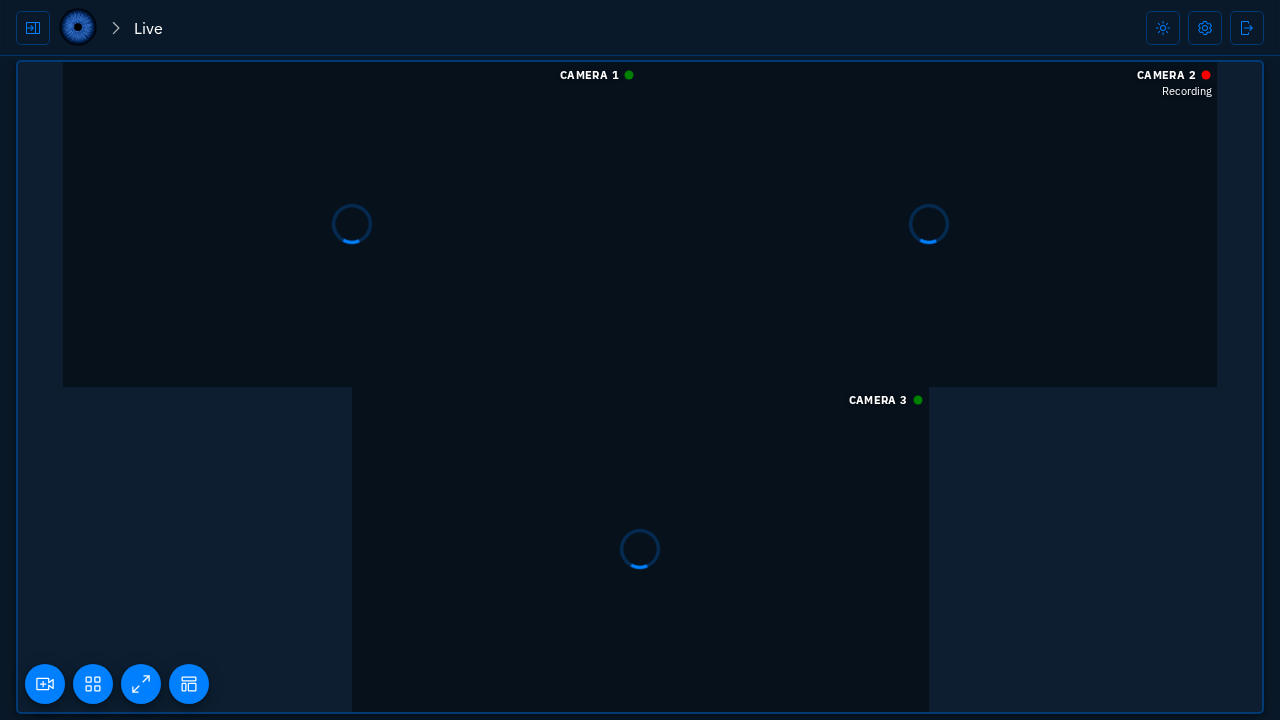
Viseron provides a live view of your cameras, allowing you to monitor them in real-time. Cameras are presented in a responsive grid layout, similar to the Events page, making it easy to view multiple cameras at once.
The Live page is accessed via the sidebar or directly from a cameras card in the Cameras page.
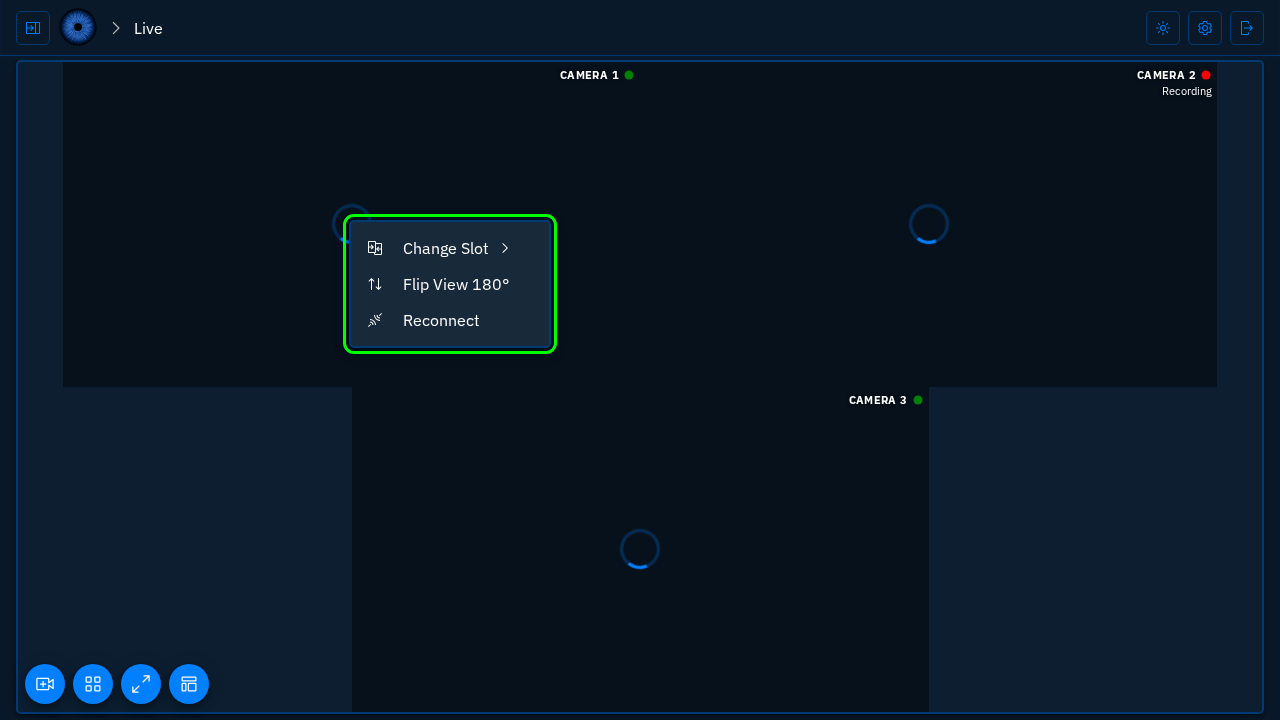
Right clicking on the video player opens a context menu that allows you to change the order of the cameras, among other options.
Context menu (highlighted in green)
MJPEG stream
If you have not configured the go2rtc component, the live view will use the MJPEG stream by default. This is a fallback option that provides a live feed but with lower quality and higher latency compared to WebRTC or MSE.
The MJPEG stream can be toggled on or off in the video player options. If you have configured the go2rtc component, you can switch between the MJPEG stream and the WebRTC/MSE streams.
The MJPEG stream is not available if you use the record_only: true option for ffmpeg.
Draw Annotations
In the player options menu, you can toggle the drawing of annotations on the video stream. This includes bounding boxes for detected objects, zones, and masks.
WebRTC and MSE
Viseron utilizes go2rtc to provide WebRTC and MSE support for high-quality, low-latency streams through the Viseron go2rtc component.
WebRTC and MSE both have their own pros and cons, and the video player will automatically select the best available option based on your browser's capabilities and the configuration of your cameras.
Example configuration can be found in the go2rtc component documentation.
go2rtc can be a bit tricky to set up, especially if you have cameras that require specific configurations or authentication methods. If you encounter issues, refer to the go2rtc documentation.
I suggest starting simple to see if your cameras are supported by default.
Note that without the go2rtc component, the frontend Live page is limited to an MJPEG stream of the frames that Viseron is processing.
PTZ controls
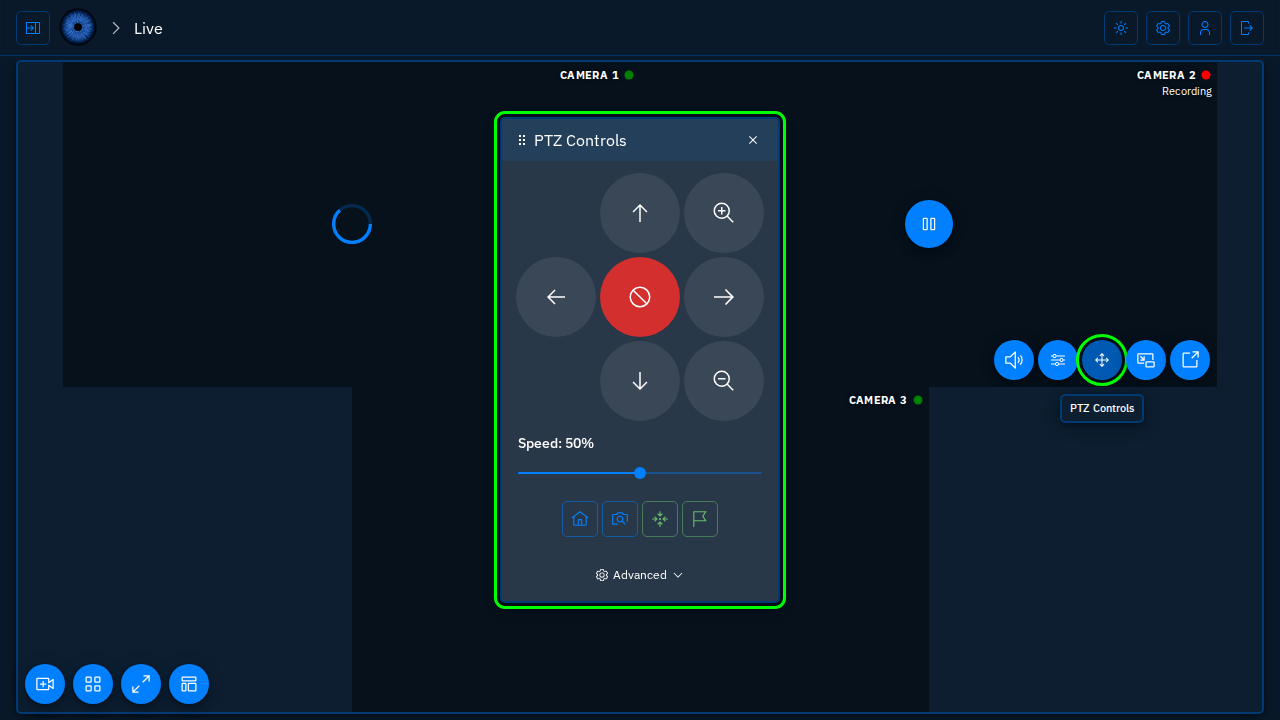
Cameras with PTZ support through the ONVIF component get a PTZ button in the video player controls. Clicking it opens a draggable card that lets you pan, tilt and zoom the camera, adjust the movement speed and manage presets and the home position. The PTZ controls are only available to admin users.
PTZ controls (highlighted in green)
Choose Cameras
You can select which cameras to display in the live view by clicking the camera icon in the bottom left corner. This will open a modal where you can select or deselect cameras.